

26 febrero
How to tell if someone is using your WiFi and how to prevent it
Is your WiFi running slowly for no reason? Does streaming cut out or do you see your router flashing when you're not using anything? Someone may be using your network without permission.
In this guide, we explain how to check for this, how to remove suspicious devices, and what settings to enable to prevent it from happening again.
1) Signs that someone might be using your WiFi
Before touching anything, check if several of these situations are recurring:
- The speed drops at odd times (at night or when no one is home).
- The router flashes with traffic, even when you are not using the Internet.
- Cuts in video calls or online games without a clear cause.
- Strange devices appear when you look at the list of connected devices.
Note: nowadays, there are many devices connected in the home (televisions, consoles, speakers, home automation). That's why the best test is the following. If the problem is more about coverage than an intruder, here is a guide to extending your WiFi signal at home.
2) How to reliably check who is connected to your router
The router displays the actual list of connected devices (via WiFi and cable).
Steps to follow to view connected devices
- Connect to your WiFi from your mobile phone or PC.
- Open your browser and enter the router's address (usually 192.168.1.1 or 192.168.0.1).
- Log in (use the router password, not the WiFi password).
- Look for a menu such as:
- Connected devices / Clients.
- DHCP / Client list.
- WiFi clients / Wireless clients.
- Check the list: it usually shows the name, IP and/or MAC.
How to quickly identify if a device is yours
First, locate the ones that are yours (mobile phone/PC/TV/console). If you don't recognise the name of any of them, try this:
- Turn off your mobile phone's WiFi for 10 seconds and see if it disappears.
- Repeat with another secure device (TV or laptop) and keep ruling them out.
If there are any you do not recognise, move on to the next step.
3) If you see an intruder on your Wi-Fi: how to kick them off in 1 minute
Depending on your router, you can do this in two ways:
Option A: block the device (recommended)
The list of connected devices usually includes options such as: Block / Deny / Blacklist / Access control.
Block the suspicious device. If your router lets you choose between allowed and denied, it is usually easiest to deny only the suspicious device so you don't have to add all your own devices one by one.
Option B: change the WiFi password (expel everyone)
Changing the WiFi password expels all devices, and only those with the new password can reconnect. This is the quickest option if you do not have a blocker.
4) Prevent it from happening again: security settings that really matter
This is where you really close the door, so they can't access your WiFi again.
Enable WPA2 (AES) or WPA3
Under ‘WiFi Security’, choose: WPA2-PSK (AES) or WPA3 (if available)
Avoid WEP (old) or rare compatible modes if you don't need them.
Disable WPS (very important)
WPS is the system for connecting without entering a password (button or setting). It's convenient, but it's not the most secure. Turn it off.
Extra security outside the home: if you connect to public WiFi networks (cafés, airports, hotels), an extra layer of security is to use a VPN. Here is a guide: what is a VPN and how does it work?
Change the password on the router panel
This is not the WiFi password. It is the one used to access the settings.
- Set a strong password.
- Do not use admin/admin or similar.
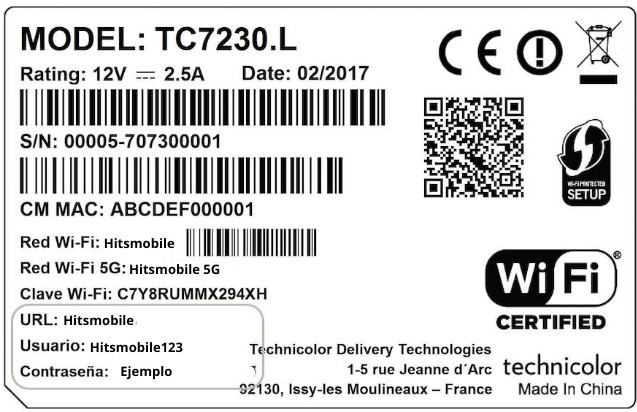
Update your router (firmware)
Check if your router has any updates. Many vulnerabilities are fixed this way.
Activate a guest network (if you often share your WiFi)
If you give your password to visitors, create a guest network with a different password. This will protect your main network.
5) If it continues to occur: reset and review ‘dangerous’ settings
If, after changing the password, you see strange devices reappearing:
- Perform a factory reset of the router.
- Configure again: WPA2/WPA3 + WPS off + new WiFi password + new panel password.
- Check for options such as:
- Remote administration: it is best to disable this if you do not use it.
- UPnP: only leave this enabled if you know you need it.
Frequently asked questions to find out if someone is using your WiFi
How can I find out who is connected to my WiFi?
Go to your router's control panel (usually 192.168.1.1 or 192.168.0.1) and look for ‘Connected devices / Clients / DHCP’. There you will see the actual list of devices connected via WiFi and cable.
What is the quickest way to kick someone off my WiFi?
The quickest way is to change your WiFi password: this will kick everyone off, and only those with the new password will be able to reconnect. If your router allows it, you can also block the suspicious device from the client list.
What is WPS and why should I disable it?
WPS is a method of connecting without entering a password (button or setting). It's convenient, but it can open the door to unwanted access. Better: WPS off and a strong password.
Does the guest network prevent my WiFi from being ‘stolen’?
Yes, because it separates visitors from your main network. This way, you can share WiFi without giving access to your devices, and if there is a problem, you can change only the guest password.
Protect your WiFi and browse with peace of mind
Finally, it is worth remembering that in most cases, ‘stolen’ WiFi does not come from anything specific, but rather from shared passwords, WPS enabled, or a password that is too simple. If you check your connected devices and apply the basics (WPA2/WPA3, strong password, WPS disabled and guest network), your network will be much more secure in just a few minutes.
And if, in addition to browsing with peace of mind, you want to have a good connection without paying too much, take a look at our mobile rates with no minimum contract period and choose the one that best suits you.

Learn how to download free music to your phone
Would you like to download free music on your mobile? Thanks to advances in technology, you no longer need to buy records or subscribe to streaming music services to enjoy your favorite songs, now you can access a wide variety of free music through different Apps.

Here's how to view deleted WhatsApp messages
Would you like to access your deleted messages on WhatsApp? Here's how you can do it.

Learn about some of the apps that consume a lot of data from your mobile rate
There are apps that significantly affect the data allowance of our mobile tariff. Do you want to know which apps you should be especially careful with? Sign in and find out.
Learn how to download free music to your phone